
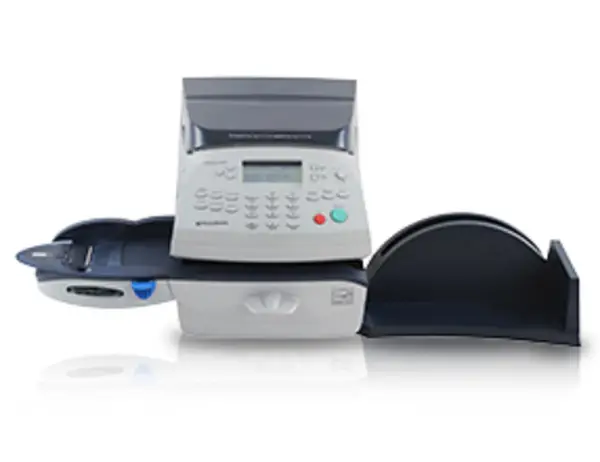
DM100 Series Support
Find solutions
Install & Setup
Using Your Product
Fixing & Maintenance
Installation, Setting Up & Drivers
Check to ensure that you have the latest version of PC Meter Connect.
Network & Connectivity
Prepare for your SmartLink installation by reviewing network and connectivity setup requirements.
Check to ensure that you have the latest version of PC Meter Connect.
Use these network requirements to prepare your IT and local network environment for connecting your DM100 and DM300-DM400.
Use PC Meter Connect software to turn your computer into a connection device that connects your meter to the Pitney Bowes Data Centre. These instructions are for first-time users who have never installed PC Meter Connect on this computer.
Restart the SmartLink device and meter, check the connections, and change your connection option to resolve SmartLink wired connection issues.
Restart your meter, check you have the latest version of PC Meter Connect installed and check your computer's USB controllers if the message Meter Not Detected appears.
The "Internet not detected" system message occurs when PC Meter Connect is not configured to use a Proxy server.
Restart the meter, check the physical connections and network settings to resolve USB Ethernet wired connections.
Learn how to resolve PC Meter Connect connection issues.
Upgrade your existing PC Meter Connect software so that you can continue to connect your meter to the Pitney Bowes Data Center and get postage funds and rate updates.
Features & Settings
Download a slogan to print your company logo or return address.
Add a Normal Preset to save your preferred default settings on your meter.
Add a Custom Preset to save your commonly used settings on your meter.
Download a custom graphic to save it on your meter.
Add a normal preset to save the default settings on your meter.
Printing
Cleaning the printer nozzle can help resolve poor print quality.
Network & Connectivity
Prepare for your SmartLink installation by reviewing network and connectivity setup requirements.
Check to ensure that you have the latest version of PC Meter Connect.
Use these network requirements to prepare your IT and local network environment for connecting your DM100 and DM300-DM400.
Use PC Meter Connect software to turn your computer into a connection device that connects your meter to the Pitney Bowes Data Centre. These instructions are for first-time users who have never installed PC Meter Connect on this computer.
Restart the SmartLink device and meter, check the connections, and change your connection option to resolve SmartLink wired connection issues.
Restart your meter, check you have the latest version of PC Meter Connect installed and check your computer's USB controllers if the message Meter Not Detected appears.
The "Internet not detected" system message occurs when PC Meter Connect is not configured to use a Proxy server.
Restart the meter, check the physical connections and network settings to resolve USB Ethernet wired connections.
Learn how to resolve PC Meter Connect connection issues.
Upgrade your existing PC Meter Connect software so that you can continue to connect your meter to the Pitney Bowes Data Center and get postage funds and rate updates.
Printing
Cleaning the printer nozzle can help resolve poor print quality.
Errors & Troubleshooting
Restart the SmartLink device and meter, check the connections, and change your connection option to resolve SmartLink wired connection issues.
When your meter displays "Waste Tank Full" or "Waste Tank Near Full" messages, follow these steps to resolve the issue.
Restart the meter, check the physical connections and network settings to resolve USB Ethernet wired connections.
Learn how to resolve PC Meter Connect connection issues.
Maintenance
Cleaning the printer nozzle can help resolve poor print quality.
Try replacing the ink cartridge to improve your print quality.