
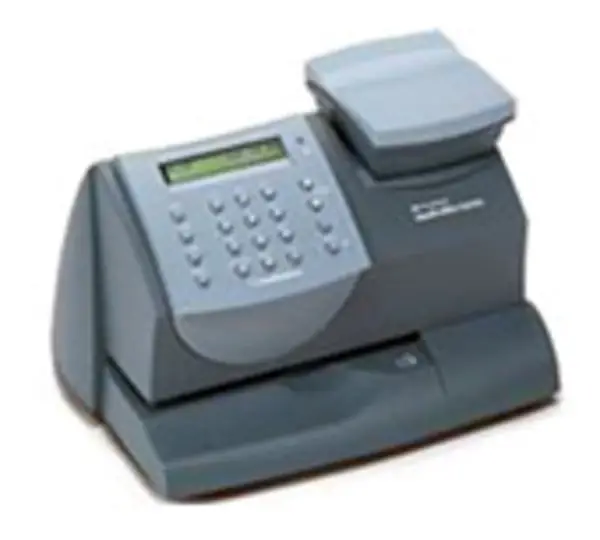
DM50/DM55 (K724) Franking Machine Support
Find solutions
Install & Setup
Using Your Product
Fixing & Maintenance
Postage
Reporting, History & Accounting
Network & Connectivity
Learn how to resolve connection issues with PC Meter Connect .
Problems with the settings, the physical connections, or a firewall may cause the No Dial Tone message to appear.
Restart your franking machine, check you have the latest version of PC Meter Connect installed and check your computer's USB controllers if the message Meter Not Detected appears.
Restart the SmartLink device and franking machine, check the connections, and change your connection option to resolve SmartLink wired connection issues.
Restart the SmartLink device and franking machine, check the connections, and change your connection option to resolve SmartLink wireless connection issues.
Use a SmartLink device to connect your franking machine to the Pitney Bowes Data Centre with a wired connection.
Use a SmartLink device to connect your franking machine to the Pitney Bowes Data Centre with a wireless connection.
Check to ensure that you have the latest version of PC Meter Connect.
Prepare for your SmartLink installation by reviewing network and connectivity setup requirements.
Use PC Meter Connect software to turn your computer into a connection device that connects your franking machine to the Pitney Bowes Data Centre. These instructions are for first-time users who have never installed PC Meter Connect on this computer.
Upgrade your existing PC Meter Connect software so that you can continue to connect your franking machine to the Pitney Bowes Data Centre and get postage funds and rate updates.
Use these network requirements to prepare your IT and local network environment for connecting your meter to the internet.
Features & Settings
If the preset feature is enabled, the franking machine reverts to the preset values when it is turned on or wakes up from sleep mode. If the preset feature is disabled, the franking machine reverts to the values last used.
Download your envelope message to save it on your franking machine.
Once you have downloaded your envelope message you need to select it to ensure it is printed on your mail.
A preset is a snapshot of franking machine settings that are most commonly used. It creates what is known as a default. If the preset feature is enabled, the franking machine shows the preset values when it is turned on or 'wakes up' after sleep mode.
Upload your envelope message via Your Account to download it onto your franking machine.
Printing
Poor print quality or no printing issues can occur due to several factors, including lack of use, overuse, or ink issues.
Network & Connectivity
Learn how to resolve connection issues with PC Meter Connect .
Problems with the settings, the physical connections, or a firewall may cause the No Dial Tone message to appear.
Restart your franking machine, check you have the latest version of PC Meter Connect installed and check your computer's USB controllers if the message Meter Not Detected appears.
Restart the SmartLink device and franking machine, check the connections, and change your connection option to resolve SmartLink wired connection issues.
Restart the SmartLink device and franking machine, check the connections, and change your connection option to resolve SmartLink wireless connection issues.
Use a SmartLink device to connect your franking machine to the Pitney Bowes Data Centre with a wired connection.
Use a SmartLink device to connect your franking machine to the Pitney Bowes Data Centre with a wireless connection.
Check to ensure that you have the latest version of PC Meter Connect.
Prepare for your SmartLink installation by reviewing network and connectivity setup requirements.
Use PC Meter Connect software to turn your computer into a connection device that connects your franking machine to the Pitney Bowes Data Centre. These instructions are for first-time users who have never installed PC Meter Connect on this computer.
Upgrade your existing PC Meter Connect software so that you can continue to connect your franking machine to the Pitney Bowes Data Centre and get postage funds and rate updates.
Use these network requirements to prepare your IT and local network environment for connecting your meter to the internet.
Printing
Poor print quality or no printing issues can occur due to several factors, including lack of use, overuse, or ink issues.
Errors & Troubleshooting
Check the Waste Ink Tray and reset the counter to resolve Waste Tank Full or Waste Tank Near Full.
Perform a balance enquiry to resolve the error P201F.
Refilling Postage
Request a refund for damaged or incorrectly printed mail by contacting An Post.
Adding postage to the device allows you to print postage and use your device.
Use your franking machine to check your available postage balance in your PrePay or Pay As You Go account.
Refill your franking machine for a smaller amount or check your postage balance to resolve Balance Too Low or Insufficient Funds.
Contact our Account Support team to resolve error 7 or error 11.
Rate Change
An Post periodically changes the postal rates. If new rates are available, you can download them onto your franking machine from the Pitney Bowes Data Centre.
Reporting, History & Accounting
Create accounts to record usage by department.
You can delete an account when necessary (for example, at the end of a fiscal year).
Edit an account when you want to change the account name or password.
When accounting is enabled on your franking machine, you must select an account before you can print postage.
Use accounts to charge back postage for printing envelopes to departments or clients.