
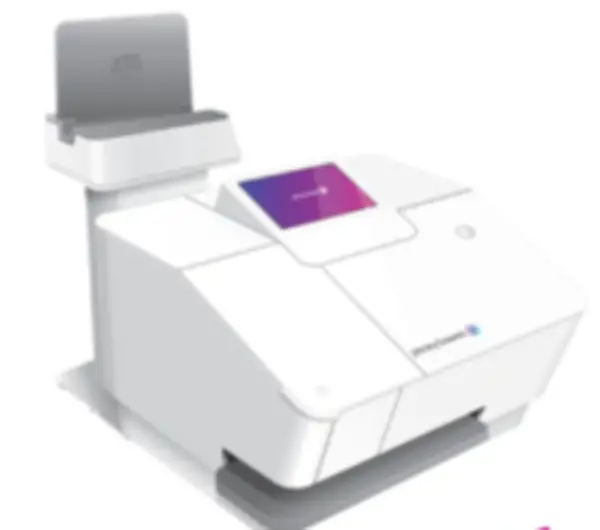
SendPro Mailstation
HZ20, HW20, HW2RFind solutions
 Top Articles
Install & Setup
Using Your Product
Fixing & Maintenance
Postage
Reporting, History & Accounting
Top Articles
Install & Setup
Using Your Product
Fixing & Maintenance
Postage
Reporting, History & Accounting
Top Articles
Follow these instructions if you are installing a SendPro Mailstation for the first time.
Your SendPro Mailstation will display a message when you're out of ink, and you will not be able to print postage until you replace the ink cartridge.
Set up a wireless connection when your device is connected to your network using WiFi.
Set up a wired connection when your device is connected to your network with an Ethernet cable.
Installation, Setting Up & Drivers
If you have extensive network security restrictions, your IT or network administrator may need these specifications to prepare for the installation.
Follow these instructions if you are installing a SendPro Mailstation for the first time.
Network & Connectivity
Follow these steps to resolve wired network connection issues on your SendPro Mailstation.
If you have extensive network security restrictions, your IT or network administrator may need these specifications to prepare for the installation.
Features & Settings
Use the Print Date & Time feature to timestamp incoming mail on the SendPro® Mailstation.
Cost Accounts help you keep track of your postage spend. You can create and assign Cost Accounts to all your mailings and shipping labels.
Follow these steps to locate the email address used during the installation of your SendPro® Mailstation.
Use the Refill Receipt Preferences to enable receiving receipts by email on the SendPro Mailstation.
The SendPro Mailstation stamp contains elements that identify the meter and the type of mail.
Look on your franking machine to find the serial number and Product Code Number (PCN).
You can check the email that is associated with the subscription on your SendPro Mailstation from the machine.
Printing
Your SendPro Mailstation will display a message when you're out of ink, and you will not be able to print postage until you replace the ink cartridge.
Use the Print Date & Time feature to timestamp incoming mail on the SendPro® Mailstation.
The SendPro Mailstation stamp contains elements that identify the meter and the type of mail.
Learn how to print reports on the SendPro Mailstation.
Your HW20 device comes with a set of standard graphic images that you can add to your envelopes or tapes when you print your postage
You can delete graphics you don't need from your SendPro® Mailstation.
Your device comes with a set of standard graphic images that you can add to your envelopes or tapes when you print your postage. A Return address must be created as a graphic.
Upload a new text only graphic to print on your mail pieces.
Upload a new return address graphic to print on your mail pieces.
Upload a new image and text graphic to print on your mail pieces.
If you see an "Unable to print stamp" message on the SendPro Mailstation, you may be able to resolve it by restarting your device.
Mailing & Shipping
The SendPro Mailstation stamp contains elements that identify the meter and the type of mail.
Learn how to send a mailpiece using Special Delivery rates from Sendpro Mailstation using the PitneyShip Pro companion app.
Learn how to send a mailpiece using Signed for rates from Sendpro Mailstation using the PitneyShip Pro companion app.
Cost Accounts help you keep track of your postage spend. You can create and assign Cost Accounts to all your mailing and shipping labels.
Learn how to print postage on a letter on the SendPro Mailstation.
You can print a shipping label in PitneyShip Pro for parcel or extra services.
Learn about the home screen on the SendPro Mailstation.
Enable cost accounts on the SendPro Mailstation to keep track of mailing and shipping costs from your device.
Cost Accounts help you keep track of your postage spend. You can create and assign Cost Accounts to all your mailings and shipping labels.
In order to send international mail, you must set the destination country.
If you have extensive network security restrictions, your IT or network administrator may need these specifications to prepare for the installation.
Your SendPro Mailstation will display a message when you're out of ink, and you will not be able to print postage until you replace the ink cartridge.
Network & Connectivity
Follow these steps to resolve wired network connection issues on your SendPro Mailstation.
If you have extensive network security restrictions, your IT or network administrator may need these specifications to prepare for the installation.
Printing
Use the Print Date & Time feature to timestamp incoming mail on the SendPro® Mailstation.
The SendPro Mailstation stamp contains elements that identify the meter and the type of mail.
Learn how to print reports on the SendPro Mailstation.
Your HW20 device comes with a set of standard graphic images that you can add to your envelopes or tapes when you print your postage
You can delete graphics you don't need from your SendPro® Mailstation.
Your device comes with a set of standard graphic images that you can add to your envelopes or tapes when you print your postage. A Return address must be created as a graphic.
Upload a new text only graphic to print on your mail pieces.
Upload a new return address graphic to print on your mail pieces.
Upload a new image and text graphic to print on your mail pieces.
Your SendPro Mailstation will display a message when you're out of ink, and you will not be able to print postage until you replace the ink cartridge.
If you see an "Unable to print stamp" message on the SendPro Mailstation, you may be able to resolve it by restarting your device.
Errors & Troubleshooting
Follow these steps to resolve wired network connection issues on your SendPro Mailstation.
Error codes PRN-4101, PRN-4102, PRN-4103, PRN-4104, PRN-4105, or PRN-4106 on the SendPro Mailstation
If you see error code PRN-4101, PRN-4102, PRN-4103, PRN-4104, PRN-4105, or PRN-4106 on your SendPro Mailstation, follow these steps to check the ink cartridge.
Email address already in use error message occurs because the email is linked to an existing Pitney Bowes subscription.
An error 'Meter is disabled' is displayed on-screen
If your SendPro Mailstation screen is blurry, faded or has a halo, follow these steps.
Firmware updates can take up to 10 minutes to complete. If this time has elapsed and the update has not completed, restart your SendPro Mailstation.
If the screen is flickering on the SendPro Mailstation, you may be able to resolve the issue by restarting your device.
If you see the "Error getting stamp" message on the SendPro Mailstation, contact Pitney Bowes support.
If you see the message "Something went wrong" while installing the SendPro Mailstation, follow these steps.
If you see an "Unable to print stamp" message on the SendPro Mailstation, you may be able to resolve it by restarting your device.
If you see the message "This device has been disabled" while installing the SendPro Mailstation, follow these steps.
Maintenance
Your SendPro Mailstation will display a message when you're out of ink, and you will not be able to print postage until you replace the ink cartridge.
Refilling Postage
Use the Postage Refills settings to select what your SendPro® Mailstation does when your postage balance is low.
You can apply to Royal Mail for a refund if your mail is damaged or has been printed incorrectly.
Follow these steps to add postage to your SendPro Mailstation.
Use the Refill Receipt Preferences to enable receiving receipts by email on the SendPro Mailstation.
Reporting, History & Accounting
Cost Accounts help you keep track of your postage spend. You can create and assign Cost Accounts to all your mailing and shipping labels.
Learn how to print reports on the SendPro Mailstation.
Enable cost accounts on the SendPro Mailstation to keep track of mailing and shipping costs from your device.
Cost Accounts help you keep track of your postage spend. You can create and assign Cost Accounts to all your mailings and shipping labels.