
PitneyTrack® Enterprise Support
Find solutions
Install & Setup
Using Your Product
Fixing & Maintenance
Reporting, History & Accounting
Installation, Setting Up & Drivers
If you are prompted to update the SigWeb certificate for the signature pad, select Yes.
The signature pad app is needed in order to use the pad with PitneyTrack Inbound or PitneyTrack Enterprise.
Some PitneyTrack Inbound or PitneyTrack Enterprise subscriptions support using the PitneyTrack mobile app on your own mobile devices, technically called BYOD (bring your own device).
The driver for the Zebra GK420d printer is located on a disc that came with the printer in its original packaging. If the disc is no longer available, you can download it from the Zebra GK420d Printer Support page.
If you are installing the Pitney Bowes JZ22 (Zebra ZD621) printer use the following instructions to download the printer driver.
Network & Connectivity
If your web browser is set up to use a proxy server, you will need to add exceptions to allow PitneyTrack to communicate with the Pitney Bowes servers.
The following URLs and IP addresses must be accessible in order for the system to connect to the internet.
Features & Settings
The PitneyTrack mobile app provides support for offline receiving and delivery.
If a recipient has not yet picked up a package, you can manually send an email to remind them.
Administrators can create custom alerts for expected packages to notify mailcenter staff of any special handling instructions or delivery conditions.
You can change your site if needed.
You can control the order and appearance of the Save and Save & Print buttons, as well as what happens when you press the Enter key.
Set up Contact Lookup Options to choose what information you want to appear when viewing contacts in the Recipient, Sender and Given to fields.
Each user can create up to ten views to quickly access specific package lists on the Package Activity screen. Each user can also select a default view, which appears when that user opens the Package Activity screen.
You can create Package Hold alerts for recipients so that packages can be held and not delivered until a later date. This is useful if the recipient is out of the office, for example.
You can copy a route if you need to add another route that's similar to one that already exists.
You can delete a route if you no longer need it.
You can edit a route if you need to change its name, frequency, description, type, or start or end times.
Use the delivery settings to choose how to handle packages during delivery, like needing signatures or ID scans.
If you do not know your password, you can reset it.
You can specify expected service level agreement (SLA) delivery time for specific carrier services. This information can be viewed in the Package Activity screen, and can be printed on delivery labels.
You can export your delivery locations (sites, buildings, floors, and mail stops) to a CSV file.
You can add up to 10 custom fields to several different screens in the system.
You can import a list of purchase orders as expected packages. When you scan the package it will auto-populate with the carriers you use, along with the recipient and sender information.
An admin can decide which fields appear, are hidden or are required to be completed when you receive, deliver or edit a package or pouch.
These settings define how you want to set the pouch delivery status and if you want to generate multiple tracking numbers for pouches.
Delivery locations help you track where a package is or is headed, such as a building, floor, or mail stop, and record package-related events tied to that location. You can also filter and view package data by location.
You can set the number of days to store and sync data between PitneyTrack Inbound, PitneyTrack Enterprise and the PitneyTrack mobile app from 7 to 40 days. The default is 15 days.
Devices that have been added to PitneyTrack Inbound or PitneyTrack Enterprise can be removed if they are no longer in use.
You can pair the wireless printer with a Tracking Assistant so that you can print to it from the Tracking Assistant.
Admins can choose to allow the package list to be filtered by building.
You can change the package data displayed in the Undelivered, Received, Checkpointed, Delivered, Attempted, and Refused boxes on the home screen. These boxes can show either the current count (the default) or the daily totals.
If the signature pad is not responding appropriately to the pen, it may need to be calibrated.
If the text on the signature pad is too light or too dark, you can adjust the contrast.
You can use the Quick Receive feature in the mobile app to rapidly receive while collecting minimal package information.
You can import the mapping for Single Sign-On (SSO) users into the system automatically on a fixed schedule from an SFTP server.
If you use the employee ID field, you can choose to make it required when adding users to the system.
Enterprise administrators can set the period of time after which users will be signed out of the system if they are not using it. This setting applies to all users.
You can change the system language between English and French.
Administrators can create banner notifications that appear across the top of the screen to inform users of important information.
If needed, administrators can restrict the visibility of contacts to only certain user roles. This allows you to have different sets of contacts for different groups of users.
You can set a default sender address, have new recipient addresses automatically added to your address book, and prevent users from managing shared contacts.
You can import your delivery locations (sites, buildings, floors, and mail stops) from a CSV file.
If you are going to use Single Sign-On (SSO), you need to configure your Identity Provider (IdP) according to our guidelines.
You can create, edit and delete package statuses as needed.
Checkpoints allow you to record an interim package location to keep track of your packages along the way.
These settings define the appearance of printed labels. You can choose the label size and select what information is printed on the label.
Administrators can send customized notifications to inform users when certain events occur.
Administrators can add, edit, delete, import, and export users of the system as needed.
Administrators can create different roles to define the tasks that users are allowed to perform. Each user is assigned a role.
Divisions are subsets of your enterprise, which is the topmost level of your organization. Each division can contain multiple locations within it. Learn how to create and manage them.
If you do not receive the Welcome email, you can go to the signin page and use the "Forgot your password?" link to reset your password.
You need to sign in in order to use the system.
Specifications for importing Location files in PitneyShip Pro, PitneyShip Enterprise, PitneyTrack Asset, PitneyTrack Inbound, PitneyTrack Enterprise, PitneyAnalytics, and the Locker Management Module.
Specifications for importing Single Sign-On (SSO) User Mapping files into PitneyShip Pro, PitneyShip Enterprise, PitneyTrack Asset, PitneyTrack Inbound, PitneyTrack Enterprise, PitneyAnalytics, and the Locker Management Module.
Editing a contact when receiving, delivering or editing a package or pouch in PitneyTrack Enterprise
You can edit a contact in the Recipient, Sender and Given To fields, so that you can update the contact on the fly.
Accessibility is configured at the recipient level. Enabling accessibility for a recipient ensures that locker assignments will meet ADA height compliance standards (no doors higher than 123 cm or lower than 35 cm from the ground), as well as no interactive touchpoints.
A department is a group of recipients for whom packages can be received and delivered. Each department can have a "key contact" who receives or picks up the department's packages when used with PitneyTrack and the Locker Management Module.
Printing
You can reprint the label for a package if needed.
You can print a manifest for a pouch if needed.
Receiving
The PitneyTrack mobile app provides support for offline receiving and delivery.
Updating the status of undelivered packages in bulk in PitneyTrack Inbound or PitneyTrack Enterprise
You can update the status of any packages in the system that have not yet been marked as delivered to "Bulk Delivered".
The PitneyTrack mobile app automatically syncs with PitneyTrack every 6 minutes but you can sync manually at any time.
You can scan 2D barcodes to capture the recipient's name when available.
If you accidentally delete a package record, you can restore it.
You can have the system generate tracking numbers for multiple packages in a pouch at the same time.
You can edit multiple packages at the same time for different recipients.
There are 4 ways to edit a package in the PitneyTrack mobile app.
You can use PitneyTrack mobile app on the Tracking Assistant to receive and drop off packages directly at a rear loading locker bank.
You can use the PitneyTrack mobile app on the Tracking Assistant to receive and drop off packages directly at a front loading locker bank.
You can use a PitneyTrack mobile app Tracking Assistant to deliver packages from the manifest.
Delivering packages that are in a pouch is slightly different from delivering individual packages.
If you use employee or student ID cards and have the personnel ID completed in the Address Book you can deliver packages by scanning ID cards.
After signing out of the PitneyTrack mobile app, you can use the Recent Users menu to change to one of the last 3 users.
Checkpoints allow you to record an interim package location to keep track of your packages along the way.
You can use the PitneyTrack mobile app on a Tracking Assistant to receive packages into PitneyTrack mobile app using the Quick Receive feature to save time.
When you receive a package that needs to be put into a locker for pickup, you can use the Receive feature to "Receive", or log, the package into the system and reserve a locker for it.
When you receive packages, you can put them into a pouch so that you can deliver them all at the same time to the same location or recipient.
You can create Package Forwarding alerts for recipients so that packages of one recipient can be forwarded to another recipient for a selected duration.
You can print barcodes for each stop along a route, which can be scanned as proof that the stop was visited.
You can define delivery and pickup routes to be run by staff to pick up and deliver mail, packages, or anything else you require.
Once a route is defined, it can be run using the PitneyTrack mobile app.
You can use a PitneyTrack mobile app Tracking Assistant to deliver packages.
You can deliver a package to the recipient using the desktop software (rather than a Tracking Assistant).
If you use inbound carriers that are not on the included list, you can add custom inbound carriers. You can also edit and delete them, if necessary.
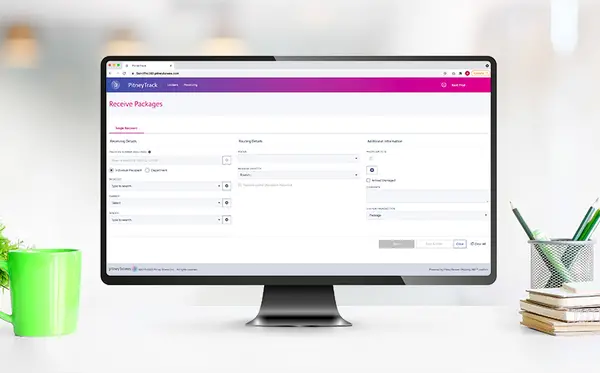
When you receive a package, you can use the Receive feature to "Receive", or log, the package into the system.
You can use the PitneyTrack mobile app on a Tracking Assistant to receive packages into PitneyTrack Inbound or PitneyTrack Enterprise.
You can manage lockers directly from the PitneyTrack mobile app, eliminating the need for desktop access.
Checkpoints allow you to record an interim package location to keep track of your packages along the way.
You can delete a package record from the system if it is no longer needed.
If needed, you can add or correct missing information in a package record.
Network & Connectivity
If your web browser is set up to use a proxy server, you will need to add exceptions to allow PitneyTrack to communicate with the Pitney Bowes servers.
The following URLs and IP addresses must be accessible in order for the system to connect to the internet.
Printing
You can reprint the label for a package if needed.
You can print a manifest for a pouch if needed.
Errors & Troubleshooting
If you get a white screen when trying to take a picture in the PitneyTrack mobile app, the camera permission needs to be enabled.
Ensure you complete all the required fields or clear your cache if you cannot save while receiving, editing or delivering a package.
Please chat with us to reprogram the wedge scanner if you are using a Pitney Bowes Wedge Scanner and packages are being saved after scanning.
Check that the Tracking Assistant scanning beam is not working, the camera is enabled or a custom carrier name is not blank if the package information is not populating in the PitneyTrack mobile app.
Learn how to resolve AirWatch remote management or software update issues with PitneyTrack Inbound or PitneyTrack Enterprise Tracking Assistant running Android version 7.x (Nougat).
Learn how to resolve AirWatch remote management or software update issues with PitneyTrack Inbound or PitneyTrack Enterprise Tracking Assistant running Android version Jelly Bean (4.1), KitKat (4.4), or Marshmallow (6.0).
If the message "No lockers are currently available in selected locker bank" appears and you cannot assign a package to a locker, disable the Needs Accessibility Accommodations for Locker Use checkbox enabled in their contact details within the Address Book.
If routes are missing in the PitneyTrack mobile app, check that another user started a route but did not end it or that an admin has not edited the route.
If the authentication email is not received, the email may be in your Spam or Junk folder, or your network may be blocking these email communications.
If the recipient is not receiving tracking or delivery email notifications from the system, the feature may not be set up correctly, or the emails may be being blocked.
There are several things that may cause issues when signing in.
Use the supplied barcode if a J794 / Zebra DS3678 scanner does not decode tracking numbers correctly on a Mac computer.
If PitneyTrack Inbound or PitneyTrack Enterprise can't connect to the Signature Pad, the Signature Pad App may not be installed, or a proxy server may be blocking the communication.
If you received an email from Pitney Bowes with the subject "Action Needed: Your SSO Connection Will Expire Soon", the security certificate used for your Single Sign-On (SSO) connection is set to expire. Action is needed to update it.
Learn how to resolve being unable to print when using PitneyTrack Inbound or PitneyTrack Enterprise with Google Chrome.
Check to make sure the mobile device is connected to a network and check the date and time are correct if the Login Timeout error appears.
The message "User not recognized" when signing in to the PitneyTrack mobile app means that the wrong region is selected.
If the message Permissions Required appears, allow the permissions for PitneyTrack Asset, PitneyTrack Inbound, or PitneyTrack Enterprise to use the Camera, Location and Storage.
Please chat with us if the Adjust Date and Time message appears when you are logging in to the PitneyTrack mobile app.
If the "Do not challenge me on this device again" option is not working or you get MFA prompts happening too often, you may need to adjust your browser settings.
The message "That address doesn't exist. Error 404" when accessing the Address Book mesans that you do not have permission to access the Address Book.
The message "This user account is locked. Too many unsuccessful login attempts." occurs after too many unsuccessful login attempts.
The message "Alert Unable to Add User to Subscription as maximum users [1] already added" occurs because the subscription already has the maximum number of users.
If the message "Duplicate Personnel ID" occurs when importing contacts, the PersonnelID values the CSV import file are not unique.
Maintenance
While Pitney Bowes-provided mobile devices are centrally managed and configured to automatically update apps as they are deployed, occasionally it may be necessary to start the update process manually.
It may become necessary to reset a T6WE to its initial state.
Follow these instructions to properly and safely clean printers and tracking assistants used with PitneyTrack Inbound or PitneyTrack Enterprise
You can reset a J794 Scanner by disconnecting the USB lead, removing and replacing the battery and then reconnecting it.
Reporting, History & Accounting
When opening exported CSV reports in Excel, Excel auto-formats the cells, which can cause data to be displayed incorrectly. To view exported reports with the data formatted correctly, the file must be imported instead of opened.
You can view the performance history of completed routes.
You can import the data of expected packages for each day. When you scan the package it will auto-populate with the carriers you use, along with the recipient and sender information.
You can use the Package Activity screen to view and export the history of all packages in your system. You can export a report of your packages in CSV, XLS or PDF format.
Administrators can see users' signins to the system and activity such as creating and editing items in the system. The logs are updated hourly. The activity logs can be exported if needed.
Documents and Software
For information on service offerings and level of support, download the Pitney Bowes Technical Support Overview