
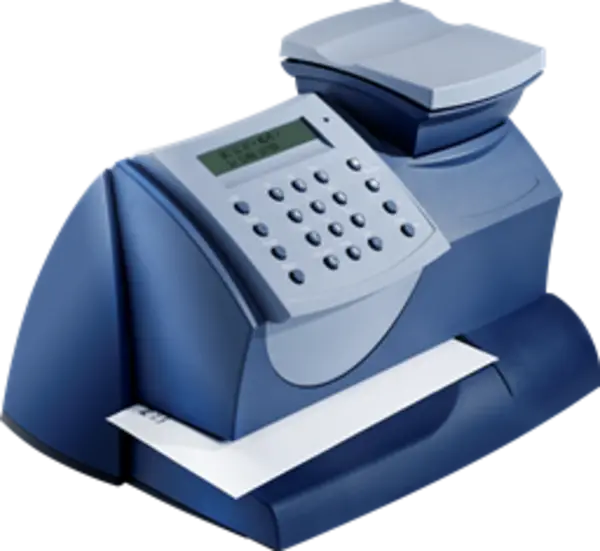
mailstation2 Meter Support
Find solutions
 Top Articles
Install & Setup
Using Your Product
Fixing & Maintenance
Postage
Reporting, History & Accounting
Product Orders & Returns
Top Articles
Install & Setup
Using Your Product
Fixing & Maintenance
Postage
Reporting, History & Accounting
Product Orders & Returns
Top Articles
Restart the SmartLink device and meter, check the connections, and change your connection option to resolve SmartLink wired connections.
When you see a battery warning message, it means your meter must be replaced. Request your no charge replacement meter as soon as any battery warning message displays.
The meter deducts the amount of your postage from the available funds on your meter. When your meter funds are low, you must add or refill more postage from your Pitneyworks or PB Postage account.
Learn how to resolve PC Meter Connect connection issues.
Poor print quality or no printing issues can occur due to several factors, including lack of use, overuse, or ink issues on a mailstation or mailstation2.
Installation, Setting Up & Drivers
Learn how to resolve an install loop on the mailstation2.
The white SmartLink cellular device allows you to add funds to your meter, perform automatic updates, and receive alerts using the cellular network.
Learn how to install mailstation2.
Use PC Meter Connect software to turn your computer into a connection device that connects your meter to the Pitney Bowes Data Center. These instructions are for first-time users who have never installed PC Meter Connect on this computer.
Network & Connectivity
Learn how to resolve the message "Inspection Due" or "Inspection Required" on the mailstation and mailstation2.
The meter deducts the amount of your postage from the available funds on your meter. When your meter funds are low, you must add or refill more postage from your Pitneyworks or PB Postage account.
Upgrade your existing PC Meter Connect software so that you can continue to connect your meter to the Pitney Bowes Data Center and get postage funds and rate updates.
Check your settings, your network configurations, and your PC Meter Connect version to resolve the "Internet not detected" message on the mailstation2, DM100i, DM125, DM300C, DM400C and DM475.
Check to ensure that you have the latest version of PC Meter Connect.
Learn how to resolve PC Meter Connect connection issues.
Learn how to set up a wireless (WiFi) connection with a SmartLink device on the mailstation2, DM125, DM300C, DM400C, and DM475.
Use a SmartLink device to connect your meter to the Pitney Bowes Data Center. These instructions are for first-time users who have never installed a SmartLink device on the mailstation2, DM125, DM300C, DM400C, or DM475.
Use these network requirements to prepare your IT and local network environment for connecting your Mailstation2, DM100i, DM125i and DM300c-DM475.
Your meter with a SmartLink wireless (WiFi) fails to connect. Your meter cannot update, add postage, or otherwise communicate with the Pitney Bowes Data Center. Restart the SmartLink device and meter, check the connections, and change your connection option to resolve SmartLink wireless (WiFi) connections.
Restart the SmartLink device and meter, check the connections, and change your connection option to resolve SmartLink wired connections.
Review the SmartLink Installation Requirements and Connectivity Setup Guide to prepare for your SmartLink installation.
Use PC Meter Connect software to turn your computer into a connection device that connects your meter to the Pitney Bowes Data Center. These instructions are for first-time users who have never installed PC Meter Connect on this computer.
Features & Settings
Learn how to set the low funds warning on the mailstation and mailstation2.
You can print a message, slogan or logo (ad) directly on any piece of mail from your meter.
Learn how to update your software version on the mailstation2.
Learn how to install the print head on the mailstation or mailstation2.
Learn how to resolve the scale not weighing correctly on the mailstation and mailstation2.
Printing
Learn how to replace your waste pad on the mailstation or mailstation2.
Learn how to use the AutoInk program to save money on your ink purchases.
Learn how to print your Last 5 Refills summary report on the mailstation or mailstation2.
Learn how to print a funds report on the mailstation and mailstation2.
Poor print quality or no printing issues can occur due to several factors, including lack of use, overuse, or ink issues on a mailstation or mailstation2.
Network & Connectivity
Learn how to resolve the message "Inspection Due" or "Inspection Required" on the mailstation and mailstation2.
The meter deducts the amount of your postage from the available funds on your meter. When your meter funds are low, you must add or refill more postage from your Pitneyworks or PB Postage account.
Upgrade your existing PC Meter Connect software so that you can continue to connect your meter to the Pitney Bowes Data Center and get postage funds and rate updates.
Check your settings, your network configurations, and your PC Meter Connect version to resolve the "Internet not detected" message on the mailstation2, DM100i, DM125, DM300C, DM400C and DM475.
Check to ensure that you have the latest version of PC Meter Connect.
Learn how to resolve PC Meter Connect connection issues.
Learn how to set up a wireless (WiFi) connection with a SmartLink device on the mailstation2, DM125, DM300C, DM400C, and DM475.
Use a SmartLink device to connect your meter to the Pitney Bowes Data Center. These instructions are for first-time users who have never installed a SmartLink device on the mailstation2, DM125, DM300C, DM400C, or DM475.
Use these network requirements to prepare your IT and local network environment for connecting your Mailstation2, DM100i, DM125i and DM300c-DM475.
Your meter with a SmartLink wireless (WiFi) fails to connect. Your meter cannot update, add postage, or otherwise communicate with the Pitney Bowes Data Center. Restart the SmartLink device and meter, check the connections, and change your connection option to resolve SmartLink wireless (WiFi) connections.
Restart the SmartLink device and meter, check the connections, and change your connection option to resolve SmartLink wired connections.
Review the SmartLink Installation Requirements and Connectivity Setup Guide to prepare for your SmartLink installation.
Use PC Meter Connect software to turn your computer into a connection device that connects your meter to the Pitney Bowes Data Center. These instructions are for first-time users who have never installed PC Meter Connect on this computer.
Printing
Learn how to print your Last 5 Refills summary report on the mailstation or mailstation2.
Learn how to print a funds report on the mailstation and mailstation2.
Poor print quality or no printing issues can occur due to several factors, including lack of use, overuse, or ink issues on a mailstation or mailstation2.
Learn how to replace your waste pad on the mailstation or mailstation2.
Learn how to use the AutoInk program to save money on your ink purchases.
Errors & Troubleshooting
When powering up the meter, it fails to boot up and displays error code 2546. Restart the meter to resolve this issue.
Learn how to resolve error 1803 on the mailstation2.
Error 16 displays when your meter reports an invalid postage total. Restart and then connect your meter to resolve this error on the mailstation, mailstation2, DM100i, DM125, DM300C, DM400C and DM475.
Learn how to resolve error code 22 on the mailstation, mailstation2, DM100i, DM125, DM300C, DM400C, and DM475.
Learn how to resolve "Meter not detected" message when using PC Meter Connect on the mailstation2, DM100i, DM125, DM300C, DM400C and DM475.
Learn how to resolve the error message "Invalid software error 107" on the mailstation2
Poor print quality or no printing issues can occur due to several factors, including lack of use, overuse, or ink issues on a mailstation or mailstation2.
Resolving a frozen software download or rate update on the mailstation series, DM100i, DM125, DM300C, DM400C, DM475 and DM Infinity
Restart the SmartLink device and meter, check the connections, and change your connection option to resolve SmartLink wired connections.
Maintenance
Learn how to replace your waste pad on the mailstation or mailstation2.
Learn how to clean the print head on the mailstation or mailstation2.
Refilling Postage
Resolve the issue with your account to clear error code 11 or 0011 on the mailstation, mailstation2, DM100i, DM125, DM300C, DM400C, DM475, DM Infinity, SendPro C Lite, SendPro C, SendPro+ (8H10), SendPro C Auto (9H10)
Learn how to resolve error code 183B on the mailstation or mailstation2.
Learn how to resolve error code 22 on the mailstation, mailstation2, DM100i, DM125, DM300C, DM400C, and DM475.
Learn how to set the low funds warning on the mailstation and mailstation2.
The meter deducts the amount of your postage from the available funds on your meter. When your meter funds are low, you must add or refill more postage from your Pitneyworks or PB Postage account.
Learn how to print your Last 5 Refills summary report on the mailstation or mailstation2.
Learn how to remove the funds from a mailstation or mailstation2 and return them to your postage account.
Rate Change
Resolving a frozen software download or rate update on the mailstation series, DM100i, DM125, DM300C, DM400C, DM475 and DM Infinity
Reporting, History & Accounting
Learn how to print your Last 5 Refills summary report on the mailstation or mailstation2.
Learn how to print a funds report on the mailstation and mailstation2.
You can use the accounting feature to track the postage that departments or individuals within your company use.
Product Orders & Returns
Learn how to correctly pack and return the mailstation and mailstation2.
Learn how to remove the funds from a mailstation or mailstation2 and return them to your postage account.
Learn how to resolve an install loop on the mailstation2.
Documents and Software
For information on service offerings and level of support, download the Pitney Bowes Technical Support Overview