
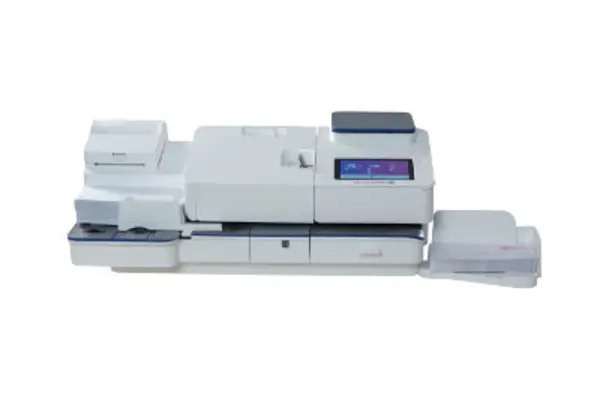
SendPro C Auto Support
7H25AFind solutions
Install & Setup
Using Your Product
Fixing & Maintenance
Postage
Reporting, History & Accounting
Installation, Setting Up & Drivers
Move your device safely, whether you are moving it across the room or to a new facility.
You may need to install a new printhead when the existing printhead is producing poor print quality.
Install a scale if you did not install one when you installed your device. Your device contains step-by-step installation instructions for compatible scales.
Network & Connectivity
The device is unable to sync transaction data. This may be caused by problems with the network connection settings, the physical connections, or a firewall.
If you're getting a "PB Commerce Cloud Not Found" message with a wireless connection on your device, there may be a problem with your network connection or firewall.
Check your device has access to all the required internet services by using the network checking app.
Add a network when you want to connect using Wi-Fi and your network is not present in the Wi-Fi list.
If you see the “PB Commerce Cloud Not Found” message and you have a wired connection, try restarting the device to reset the connection.
Problems with the settings, the wired connection, or a firewall may cause network connection issues.
Problems with the settings, the wireless connection, or a firewall may cause network connection issues.
The MAC address is the network identifier for the device. IT uses it to allow the device onto the network.
Forget a network if you do not want your device to automatically connect to a network or you need to resolve a wireless network issue.
A proxy server is a computer that acts as a gateway between your local network, your device, and the internet.
Use a network cable to connect your device to the Pitney Bowes Data Center with a wired connection.
You can connect your device via a wireless network connection.
Use these network requirements to prepare your IT and local network environment for connecting your SendPro C device to the internet.
Features & Settings
Add presets to store a group of commonly-used settings. Presets can store settings such as a postage class, an account and a graphic.
Set the brightness of the display to suit your work space.
Advance the date to print postage up to thirty days before you need to send it.
Reset the piece counter to delete the piece count information.
Create a security PIN to prevent unauthorised use of your device.
Upload your envelope message via Your Account to download it onto your franking machine.
Use the toolbar to view and change settings for your device.
A preset is a set of commonly-used settings saved as a template that you can use to more quickly select the same settings in the future.
The default preset timer will reset your device to your most commonly-used settings.
Modify a preset to rename a preset, replace the default preset or delete a preset.
Select a preset to quickly select a commonly-used group of settings.
Use the energy saver to reduce energy usage. The energy saver turns your device off after a period of inactivity.
Upload the system logs if a Pitney Bowes representative requires them.
When you move your device to a new location or install a new scale, check the scale location code is still correct.
Edit the Differential Weighing threshold to set the minimum weight each mailpiece must weigh before the device will print your mail.
Zero the scale to set the weight to zero.
Use Differential Weighing to calculate the correct weight and price as you remove and print each mailpiece.
Enter the weight of a mailpiece when you know its weight and are not using the scale.
Use the scale on your device to weigh your mail and calculate the correct postage for you.
If your device is close to an air conditioning unit or fan, use Scale Stabilisation to help prevent weighing issues and provide more accurate readings.
Install a scale if you did not install one when you installed your device. Your device contains step-by-step installation instructions for compatible scales.
Install an external scale if you send large volumes of mail such as parcels and packages.
Use Seal Only mode to seal envelopes without printing anything.
Use the moistener on your device to seal your envelopes before you print postage.
Familarise yourself with the ports on the back of your device.
Review the material specifications including the minimum and maximum envelope sizes, envelope stack height, and tape size details.
Familiarize yourself with the parts of your SendPro C Auto.
Review the specifications of your SendPro C Auto including the throughput, ink cartridge yield, and other component details.
In order to find the correct information for your device, you need to know the model number.
The Print on Envelopes app is the starting point for printing postage on an envelope or tape. It also allows you to change what you print.
The Home screen is the first screen you see after switching the device on or if you wake it from sleep mode. The Home screen provides the starting point for printing postage.
Prevent sealing issues by having adequate sealant in the moistener tank, placing the envelope correctly on the feed deck, and maintaining the wick or brush in the moistener.
Use postal approved ink cartridges. Non-postal approved ink cartridges can damage your device.
Printing
Check your ink, run a test pattern, and clean your printhead to resolve poor print issues.
Add a customised text message to print a return address or your own personalised message. Your message must comply with the postal rules for your country.
The postal frank impression contains components that identify the mailer and the type of mail.
As well as printing postage, your device uses other ways to print and feed mail. Tap Print Mode in the Print on Envelopes app to see the available options.
Print a graphic without printing postage, such as the Received graphic on incoming mail.
Customise your mail by adding a custom logo or standard graphic.
Print the date and time to keep a record of when you receive incoming mail.
If it is not possible to print postage directly onto your envelope, you can print it onto a tape. You can then apply the tape to the envelope.
Printing a test pattern shows you if the printhead is functioning properly or if you have enough ink in the cartridge.
Mailing & Shipping
Follow An Post requirements to ensure you mail is not delayed or rejected.
Use Key in Postage mode if you know the price of the mail you are sending.
Send your letters and small parcels by Standard Mail. Standard Mail can be an economical way to send your post.
Network & Connectivity
The device is unable to sync transaction data. This may be caused by problems with the network connection settings, the physical connections, or a firewall.
If you're getting a "PB Commerce Cloud Not Found" message with a wireless connection on your device, there may be a problem with your network connection or firewall.
Check your device has access to all the required internet services by using the network checking app.
Add a network when you want to connect using Wi-Fi and your network is not present in the Wi-Fi list.
If you see the “PB Commerce Cloud Not Found” message and you have a wired connection, try restarting the device to reset the connection.
Problems with the settings, the wired connection, or a firewall may cause network connection issues.
Problems with the settings, the wireless connection, or a firewall may cause network connection issues.
The MAC address is the network identifier for the device. IT uses it to allow the device onto the network.
Forget a network if you do not want your device to automatically connect to a network or you need to resolve a wireless network issue.
A proxy server is a computer that acts as a gateway between your local network, your device, and the internet.
Use a network cable to connect your device to the Pitney Bowes Data Center with a wired connection.
You can connect your device via a wireless network connection.
Use these network requirements to prepare your IT and local network environment for connecting your SendPro C device to the internet.
Printing
Check your ink, run a test pattern, and clean your printhead to resolve poor print issues.
Add a customised text message to print a return address or your own personalised message. Your message must comply with the postal rules for your country.
The postal frank impression contains components that identify the mailer and the type of mail.
As well as printing postage, your device uses other ways to print and feed mail. Tap Print Mode in the Print on Envelopes app to see the available options.
Print a graphic without printing postage, such as the Received graphic on incoming mail.
Customise your mail by adding a custom logo or standard graphic.
Print the date and time to keep a record of when you receive incoming mail.
If it is not possible to print postage directly onto your envelope, you can print it onto a tape. You can then apply the tape to the envelope.
Printing a test pattern shows you if the printhead is functioning properly or if you have enough ink in the cartridge.
Errors & Troubleshooting
If you see the error "Clear Paper Jam," an envelope or label may be stuck in the transport deck.
Please chat with if the message "Ink waste pad is almost full" appears.
If the "No PSD" message appears on the display and the device will not function, disconnect your network connection, reboot the device, upload your data and perform a postage refill.
Not ready to print appears because you need to clear a jam, check the ink or printhead, select an account or upload transactions.
Reboot the device if the "Shared services has stopped working" message appears.
If you see the message "Sync your data," it may mean that your system has been offline and has not uploaded your envelope printing transactions recently. It could also mean that you are experiencing connection issues.
Upload your transactions when you see the "Transaction log upload required" message.
Upload your transactions when you see the "Transaction upload due" message.
If the power light is flashing blue, red, or white and the device is not working, you may be able to clear the error by restarting the device.
Reboot the device if the postage balance shows "reading".
The SendPro C, SendPro C Auto is turned off or does not have power.
Remove the stuck tape from the device if Tape Transport error appears.
If you see the message Problem with the Feeder, an envelope or label may be stuck in the transport deck.
Add more tapes into the tape feeder if the message "You're out of tape strips" appears.
Set the Differential Weighing weight threshold to a lower weight if the message Weight removed less than threshold appears.
Some transactions failed to sync on your SendPro C, SendPro C Auto. You may be able to clear the error by restarting your device and synchronising transactions.
Reboot your device if error 51 appears.
If you see one of these error codes or messages, you may have a network connection issue or you may need to connect to Pitney Bowes.
If errors RA00, RA01, RA02, RA000, RA09 , DL00, DL01 and the message Loading Current Rate and Device Information appear and the device will not print, update your postage balance, reboot your device, and download any software updates.
Check your connections and reboot the device to resolve this issue. The errors BA00, BA04 or BA05 appear because the base is disconnected from the tablet.
Maintenance
If you see the error "Clear Paper Jam," an envelope or label may be stuck in the transport deck.
Remove the stuck tape from the device if Tape Transport error appears.
Use the feeder to automatically print a stack of mail.
Check the ink level to ensure you have enough ink in your device.
If you clean the print nozzles and you still get a bad test print pattern, try cleaning the printhead.
Visit our supplies website to order supplies for your device.
Printing a test pattern shows you if the printhead is functioning properly or if you have enough ink in the cartridge.
Your device will need refills of sealing solution in order to seal envelopes. Follow these steps to fill the moistener tank.
If the moistener tank is full and your envelopes are not sealing properly, clean the moistener brush and wick.
Replace the ink cartridge when the low ink warning appears to ensure your device is in optimal working condition.
Use Seal Only mode to seal envelopes without printing anything.
Use the moistener on your device to seal your envelopes before you print postage.
Refilling Postage
Change the default refill amount to store an amount you want to refill your device with.
Check your funds for printing postage on your device at any time.
View and print receipts of previous postage refills by using the Print Refill Receipt app.
Request a refund for damaged or incorrectly printed mail by contacting An Post.
Print a funds report if you need a report showing the total number of mailpieces sent.
Refill your postage funds for printing postage as soon as you receive a message that your available funds are low.
Set the low funds warning to warn you when your available funds for printing postage reaches a certain amount. Use this warning as a reminder to add more postage to your device.
Your device automatically uploads your postage printing transactions at least once during the day and once after hours.
Rate Change
Your device updates postal rates and software automatically. Keep your device turned on and connected to your network to receive automatic updates.
Reporting, History & Accounting
Add accounts to record Print on Envelopes usage by department.
You can delete an account, sub account, or sub sub account through the Print on Envelopes app.
Email an account report to keep a record of how much departments or clients have spent on their postage over specific time periods.
You can protect each account from unauthorised access by turning account passwords on.
You can use the accounting feature to track the postage that departments or individuals within your organisation use.
Run account reports to show how you spent your postage for a specific account or for all accounts over various time periods.
Edit an account when you want to change the account name, code, description, status or password.
Setting the account status to inactive prevents anyone from charging postage against it.
When accounting is enabled on your device, you must select an account before you can print postage.
Set the reporting period of an account report by setting its start and end dates.
Set the account report preferences to determine what level of accounts are reported on (Account, Sub account or Sub sub account).
View the total amount you have spent on postage and the total number of pieces printed.